ANV037 Selecting the Correct Eagle Eye Networks Local Video Viewing Solution
Application Note: Video - ANV037
Selecting the Correct Local Video Viewing Solution
2025-01-23 Revision 4.0
This Application Note is intended for Resellers (Sales and technical staff) who want to better understand Brivo Eagle Eye’s options for Local Viewing Solutions and who are looking to better understand these options and how to determine the best one to use for every customer scenario. This Application Note will walk through each option and explain how they differ. Example use cases are also provided to help ensure the right selection is made.
Security Operators interacting with Brivo Eagle Eye Video need several ways to monitor live video and video playback, depending on the specific use case (spot monitor, manager display, video wall, browser, mobile apps, etc.). Their main focus is to quickly view video with minimal latency and at the highest possible resolution and frame rate. Brivo Eagle Eye QL Stream is designed and developed to enhance the local video viewing experience for all users who interact with Brivo Eagle Eye Video on the local network.
Brivo Eagle Eye supports six Local Display solutions that provide live monitoring of cameras on the local area network. This Application Note describes all of the Local Display options available with Brivo Eagle Eye Video, presents common use cases, and highlights optimal solutions. Brivo Eagle Eye Local Viewing solutions:
Local Display via Media Shortcut
Local Display via Monitor
Eagle Eye Viewer Application for iOS, macOS & Android
Eagle Eye Viewer Application for Windows
NX-V Eagle Eye Viewer for Apple TV
Third-party Integrations
Local Display via Media Shortcut
Local Display Architecture via Media Shortcut
The Media Shortcut option is available for enhanced local video viewing when accessing Brivo Eagle Eye Video from a browser on the same local network as the Brivo Eagle Eye Bridge. This option provides the full VMS experience, including access to Video Playback, Full Video Live View, and Layout Preview Video, without requiring data transmission to the Brivo Eagle Eye Cloud. The Media Shortcut only works when the live video is accessed from the same local network to which the Bridge or CMVR is connected via the WAN.
Data passing between the CamLAN and WAN is routed through the bridge/CMVR's built-in firewall. Media Shortcut enables improved load times, higher viewing quality, and lower latency. Customers utilizing the Local Display via Media Shortcut will be looking for a simple, low-cost method to support a single location with a smaller camera count, using only a network connection.
Differentiators:
Zero-cost option
Low-latency video preview and playback
No hardware to install; simple setup (usually on by default)
Live display shown on a browser-connected PC
No additional cabling required
Full Eagle Eye Cloud VMS experience
Bridge Local Display via Monitor
Local Display Architecture via HDMI
Local Display via Monitor provides live local video from multiple cameras via the HDMI connection from the Eagle Eye Bridge to a monitoring screen. This solution displays designated live video layouts on a single monitor from the cameras connected directly to the Bridge. Customers utilizing the Local Display via Monitor will be looking for a simple, low-cost method to support a single location with a smaller camera count.
Differentiators:
● No additional hardware cost
● Requires only a monitor and cabling
● Lower latency stream than normal browser view
● Resolution is limited to 640x360 (as of the posting of this Application Note)
Eagle Eye Viewer Application for Apple (iOS, macOS) or Android
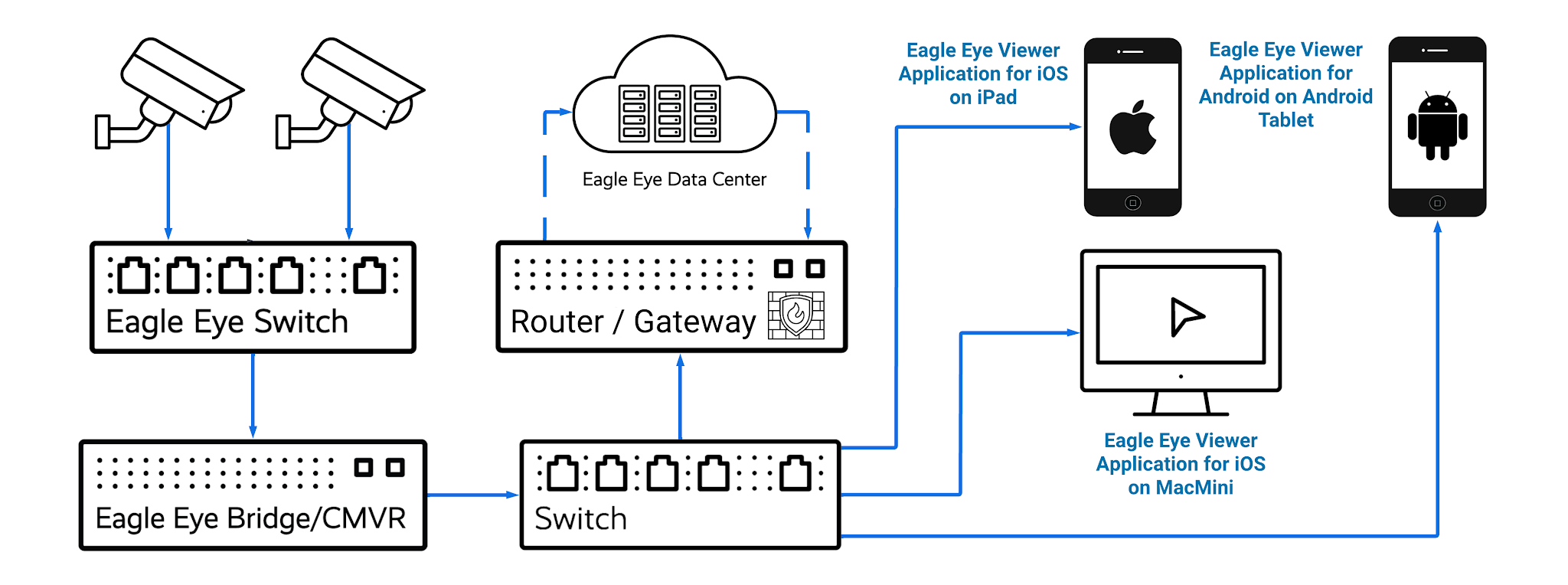 Local Display Application Architecture via iOS/Android/macOS Eagle Eye Viewer
The Brivo Eagle Eye Viewer iOS and Android application is an option for viewing local video in the user's chosen layout at the camera’s full resolution and frame rate when the application is on the same network as the bridge. This option makes use of QL Stream (via RTSP) and can display cameras from both the local network and the Bridge's CamLAN network. The Eagle Eye Viewer iOS Application is available for iPad, Mac, and Android tablets. This option can be useful for utilizing an iPad or Android tablet, or a macOS desktop for a simple Receptionist view, or a Manager station. Similar to Media Shortcut, but with the benefit of higher-resolution preview images for local cameras.
Differentiators:
Lower latency than a browser
Full-resolution preview display
Supports customizable layouts
Full Cloud VMS experience
Cameras in Layout have limited total MP capacity (Apple: 18MP for M1 processor and Android: a limit of 8 cameras in full video on a Samsung Galaxy Tab S9 or similarly specced tablet; see AN061)
Eagle Eye Viewer Application for Windows
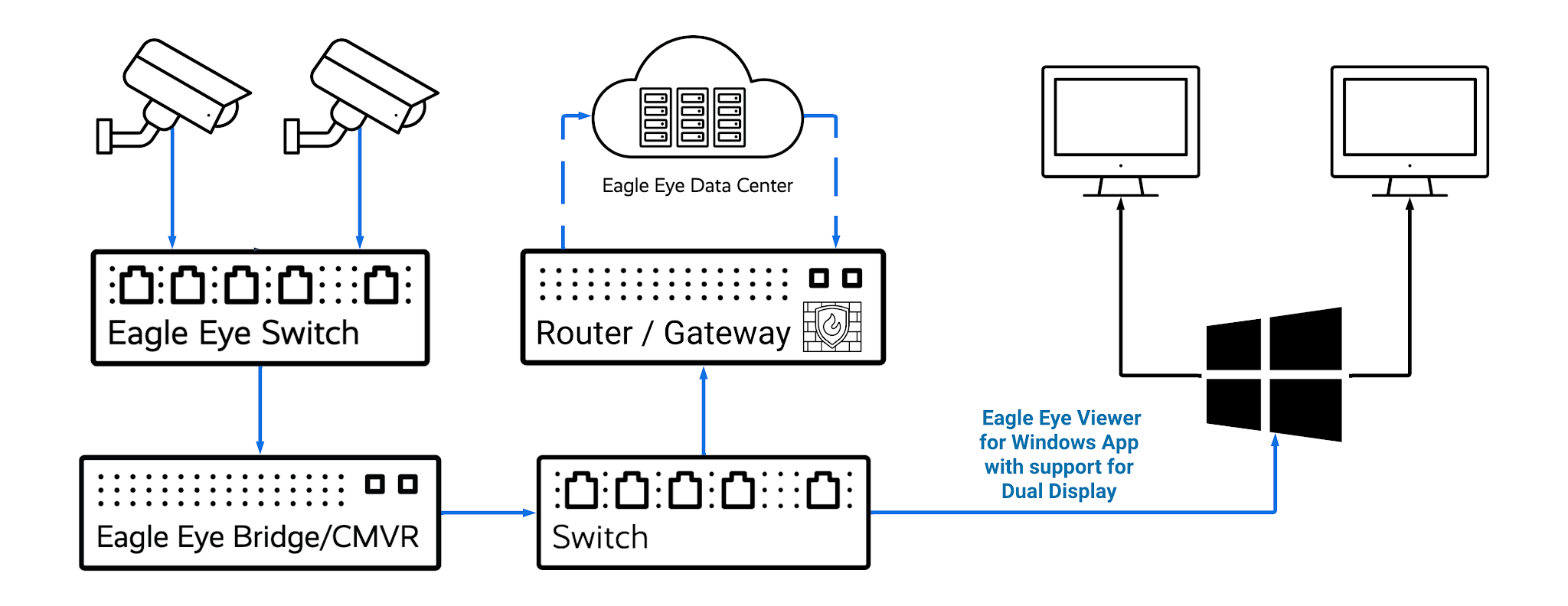 Local Display Application Architecture via Brivo Eagle Eye Viewer for Windows
The Brivo Eagle Eye Viewer for Windows allows users to view their locally available layouts from their Cloud VMS account by using a dedicated Windows application that supports dual monitors and up to 32 cameras at a time. The Brivo Eagle Eye Viewer displays high-quality, low-latency local video from the user’s selected VMS layout and streams low-resolution video from remote devices or from Eagle Eye Camera Direct cameras. This option allows you to secure connections with a simple user login option based on the OAuth protocol found in the VMS. Update layouts from the Cloud VMS to the device with one click, or edit layouts in-app as needed. Use any monitor or HDTV as a live video display, with support for up to 4K resolution monitors.
Differentiators:
Cost for minimum recommended specification Windows PC ~$1000.00
Full-resolution Live Video.
Supports up to two displays with up to 32 camera streams (16 per monitor).
The launch version includes access to local video downloads from CMVR.
Auto-rotate up to 4 layouts on display.
NX-V Eagle Eye Viewer Application for Apple TV
Local Display Application Architecture via NX-V Brivo Eagle Eye Viewer Apple TV
The NX-V Brivo Eagle Eye Viewer allows users to view Brivo Eagle Eye Video through off-the-shelf Apple TV hardware and view up to 16 cameras at a time. The NX-V Eagle Eye Viewer displays high-quality local video with low latency from the user’s selected VMS layout and streams low-resolution video from remote devices or from Camera Direct cameras. This option was developed by a Brivo Eagle Eye integrations partner and allows you to secure connections with a simple user login option based on the OAuth protocol found in the VMS, update layouts from the VMS to the device with one click, and use any monitor or HDTV as a live video display, with support for up to 4K resolution monitors.
Differentiators:
Low-cost option. $150 for AppleTV 3rd Gen Ethernet. Use any HDMI monitor. NX-V Eagle Eye Viewer application is a one-time $34.99 fee from the tvOS app store.
Full-resolution Live Video
Supports up to16 camera streams on display.
Auto-rotate camera display in order to minimize screen burnout
Third-Party Integration via QL Stream (RTSP) Streaming from Bridge
Local Display Architecture via Integration with Third-Party
Brivo Eagle Eye QL Stream allows for connection to many services that support RTSP Decoding. This option provides access to the full-resolution stream from all cameras attached to the local Bridge/CMVR. These streams are accessed via a URL and can be integrated with Video Wall software or third-party systems, which can be scaled to meet user needs by purchasing higher-end workstations or video servers with multiple displays and high-throughput capabilities. This option is best suited for a high-demand location where access to live, local, high-resolution video is imperative, such as a Security Operations Center actively monitoring camera feeds.
Differentiators:
High scalability
Highest performance
Standards-based compatibility
Lowest latency
More complex setup
No Cloud VMS experience required
There is also an option within the Bridge Settings to enable Local Display via Browser.
This option allows you to enter the IP address of the Bridge/CMVR WAN connection as a URL in your browser and to log in with your User ID and Password. This option will display the same layouts available for Local Display via Monitor in a browser window on a locally connected PC. This option is limited to displaying the Preview Streams from the local cameras, similar to Local Display via Monitor. Live Viewing requires Flash support. Note, however, that all major web browsers, including Apple Safari, Google Chrome, Microsoft Edge, and Mozilla Firefox, have already permanently removed Flash support since early 2021.
Local Display via HDMI
Local Display via Browser (Media Shortcut)