ANV002 Enhanced Local Viewing Using Eagle Eye QL Stream with Media Shortcut
Application Note: Video - ANV002
Enhanced Local Viewing Using Eagle Eye QL Stream with Media Shortcut
2023-10-04 Revision 2.0
This Application Note is intended for administrator users of Brivo Eagle Eye Video. Some knowledge of the network where the Eagle Eye Bridge is installed is required.
Brivo Eagle Eye QL Stream is technology for routing, transmitting, securing, and processing video feeds from security cameras with low latency, high security, and reliability for local video viewing. Eagle Eye QL stream improves existing local video viewing significantly.
The Brivo Eagle Eye Video Media Shortcut is powered by QL Stream and provides enhanced local viewing of video content when accessing the VMS from the same local network as the Eagle Eye Bridge. This provides access to video playback, full live video view, and layout preview video without requiring data transmission over the Brivo Eagle Eye Cloud. This feature is accessible only from the local network to which the Bridge or CMVR is connected via the WAN. Use of Media Shortcut allows for improved load times, increased viewing quality, and reduced latency. Media Shortcut is available in all Editions of Brivo Eagle Eye Video (Standard, Professional, and Enterprise).
Media Shortcut is enabled by default for all Bridges and users. When accessed, Media Shortcut allows decryption and transmission of video content across the user's local network for three main reasons:
Full Video Stream Live View: Media Shortcut improves full video load times and reduces latency in continuous real-time video delivery.
Layout Preview Stream: Media Shortcut improves the Layouts screen load time, enhances the Layouts stream video quality, and decreases latency in continuous real-time delivery of multiple preview streams within the Layouts screen.
History Browser Video Review and Playback. In CMVR applications, Media Shortcut improves the following:
Load times of preview video
Continuous load times when requesting additional video data via the Scrub Bar
Load times of requested full-stream video upon initiating playback. This does not apply to Cloud storage.
Notable Improvements in Client Browser Experience
When enabled, Media Shortcut provides the following key improvements:
The default ‘Image Per Second’ (IPS) for the Preview Stream is increased from 1 to 4 IPS. Cameras with analytics enabled will display the Preview Stream at 8 IPS.
The RAW JPEG stream is used without compression for Cloud transmission.
The overall latency of the full video live stream and the load time of preview streams are improved.
Media Shortcut can be confirmed IN USE in 2 ways:
Images of Full Video Live view (left) and History Browser view (right) of Media Shortcut
Media Shortcut is not used to download video. Saved video must be downloaded from the Cloud in all applications and is not available for download from the local device.
However, if a Bridge has not synchronized the video to the Cloud yet or is in “Minimal Bandwidth” mode, then it will appear as if the video is being pulled from the Bridge directly.
Media Shortcut is enabled by default on Bridges and CMVRs; however, it can be disabled or configured by accessing the Bridge’s Advanced Settings (found in the Bridge Settings tab within the Eagle Eye Cloud VMS).
Bridge Advanced Settings views for configuring and disabling Media Shortcut
Media Shortcut is enabled by default for all users, but can also be disabled or enabled per user. This option is in the User Profile section. This feature can be disabled by selecting their name in the top-right corner of the VMS and selecting “My Profile.” In the settings tab, select the “Previews” tab. This will show the setting for disabling Media Shortcut. This allows someone to opt out of the feature, while it remains active for other users.
My Profile Settings to view User option to disable Media Shortcut.
In some network situations, Media Shortcut will require configuration of the Media Shortcut
Override:
The Media Shortcut Override is used when applying Media Shortcut across mapped virtual local area networks (VLANs). Using the Override requires network information to be provided by the customer’s IT management services or provider. The Override’s default is the detected network assigned by the network DHCP services.
When a request is made from the client browser outside of the Bridge’s WAN, a network-mapped address must be utilized to communicate between VLANs. The IP addresses assigned to point to the Bridge WAN address need to be entered as the Media Shortcut Override value. DNS resolution must be enabled across the network map (see troubleshooting below for more information).
Media Shortcut Override will take three different inputs: "camLAN" (which is simply the CamLAN IP), "wan" (the Wan IP), or any other specified IP address (example: 192.168.2.4).
Examples:
If your computer is on a different subnet than your Bridge/CMVR but your Bridge/CMVR is still on the local network.
You can then type in the IP of the Bridge that connects to the subnet your computer is on (this example requires the site network to be set up correctly).
If you would like to preview what Media Shortcut would look like for your system, but you do not want to change your network until you know the improvements will be enough.
You could connect your laptop to the CamLAN and then type "camlan" in the override field. This would allow you to see faster video and previews through a laptop.
Example of VLAN Application: When access to Media Shortcut-enabled functionality is requested from a Bridge/CMVR outside of the VLAN, users must configure the Override to allow access from the client’s VLAN to the Bridge/CMVR’s VLAN. This is done by configuring the Override with the IP address mapped to the corresponding Bridge IP Address. If needed, “*.local.eagleeyenetworks.com” should be added to the whitelist.
VLAN Override example for Media Shortcut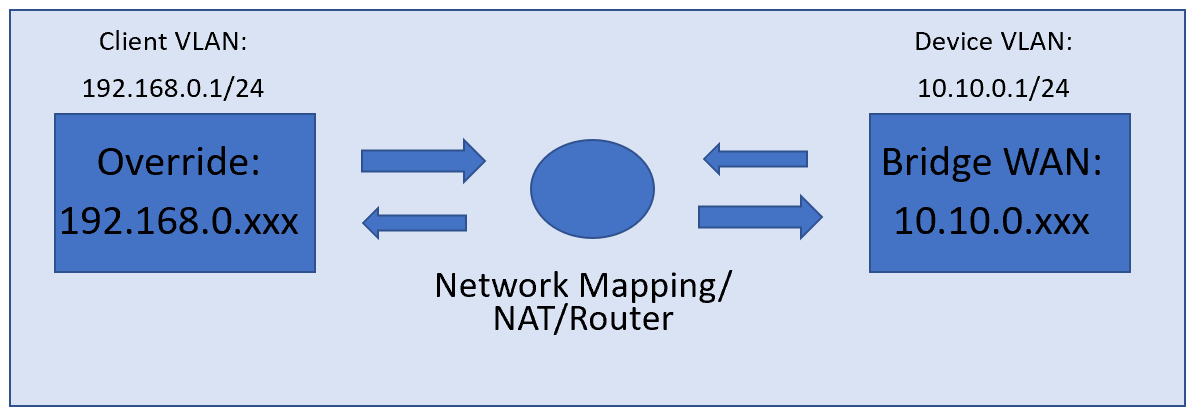
Media Shortcut Network Topology:
Virtual Private Networks (VPN): Media Shortcut does not require additional Override configuration for VPNs unless a VLAN is applied within the VPN (in this example, VLAN configuration would be applied).
Media Shortcut works best in a simple network environment. As noted above, even with the existence of a segmented “office type” local network, the Media Shortcut default settings must be configured to provide the benefits of faster response times and more fluid preview streams.
Once the network environment reaches a certain level of complexity, there can still be issues where a Bridge that should be available to provide Media Shortcut fails to do so.
Eagle Eye Networks, through investigation, has found these two fixes for common causes of Media Shortcut failing to launch.
To troubleshoot issues with Media Shortcut, you must be on the local network that is experiencing the problem. To see the issues, the user must use their browser developer tools to inspect the activity of the stream from the local network to the browser.
DNS Errors:
If Media Shortcut fails to work even though it appears to be configured properly, one issue may be the local network is not passing the SSL Certificate from the Bridge to your client’s device browser.
To troubleshoot this, open a live stream to a camera on the local network, if the resulting browser URL ends with “shortcut_override=false” there is an issue. Inside the live stream window you will want to inspect the website, most commonly accessible by right clicking with a mouse inside the window:
This will open up a browser console. Look for the Network tab, and investigate the “ping” for the Request URL:
If you copy and paste “https://een<bridge ESN>.local.eagleeyenetworks.com/shortcut/ping” into another browser tab, you will likely get a timeout error like this:
To fix this issue, you can modify the “Hosts” file of the client device that is requesting the stream from the local network. Modifying the Hosts file is a relatively simple task, but it should be left to a person with a reasonable amount of experience to limit any misconfiguration.
Inside the Hosts file, you will want to register your local Bridge's WAN IP address, and the URL request that Media Shortcut is requesting:
“<bridge IP><space>een<bridgeESN>.local.eagleeyenetworks.com”
If the update to Host file is successful, your live view URL should display “shortcut_override=true,” and if you copy and paste the Request URL, you should receive a "pong" response in your browser:
Certificate Errors:
Using the same method above to inspect a camera’s Live Stream, you may also receive a warning from the Request URL that the Certificate Date is Invalid:
If the error is “NET:ERR_CERT_DATE_INVALID,” then an upgrade of the Bridge software is needed. Call or email our support team with the Bridge ESN, and let them know you need to update your device to the latest version. This should resolve the Certificate issue, but it may not resolve the issue for Media Shortcut if the above DNS error is present.